Fix “No module named pyspark” in VS Code
When VS Code reports ModuleNotFoundError: No module named 'pyspark', check which Python is running the file. Installing PySpark through a different interpreter leaves this one unable to import it.
Print the interpreter from the failing run
Add these two lines above the PySpark import and run the file with the same button or command that failed.
import sys
print(sys.executable)
from pyspark.sql import SparkSession
The printed path identifies the environment that needs PySpark. Compare it with the interpreter shown in VS Code's status bar. The integrated terminal, debugger and notebook kernel can use different environments.
Install into your project environment
Open the project folder in VS Code. In PowerShell, create a virtual environment if you don't already have one, then invoke its Python directly. This also works when PowerShell activation scripts are restricted.
py -3.13 -m venv .venv
.\.venv\Scripts\python.exe -m pip install pyspark==4.2.0
.\.venv\Scripts\python.exe -c "import sys, pyspark; print(sys.executable); print(pyspark.__version__)"
For WSL, Ubuntu or macOS, use the environment's Linux or macOS executable.
python3 -m venv .venv
.venv/bin/python -m pip install pyspark==4.2.0
.venv/bin/python -c "import sys, pyspark; print(sys.executable); print(pyspark.__version__)"
The last command should print a path inside your project and 4.2.0. A plain pip install can target a different interpreter. Using the explicit Python path makes the destination visible.
Select the same interpreter in VS Code
- Press Ctrl+Shift+P and run Python: Select Interpreter.
- Choose the interpreter in this project's
.venv. If it isn't listed, choose Enter interpreter path and browse to the executable you just used. - Create a new integrated terminal, then run your script again. Existing terminals may retain their previous environment.
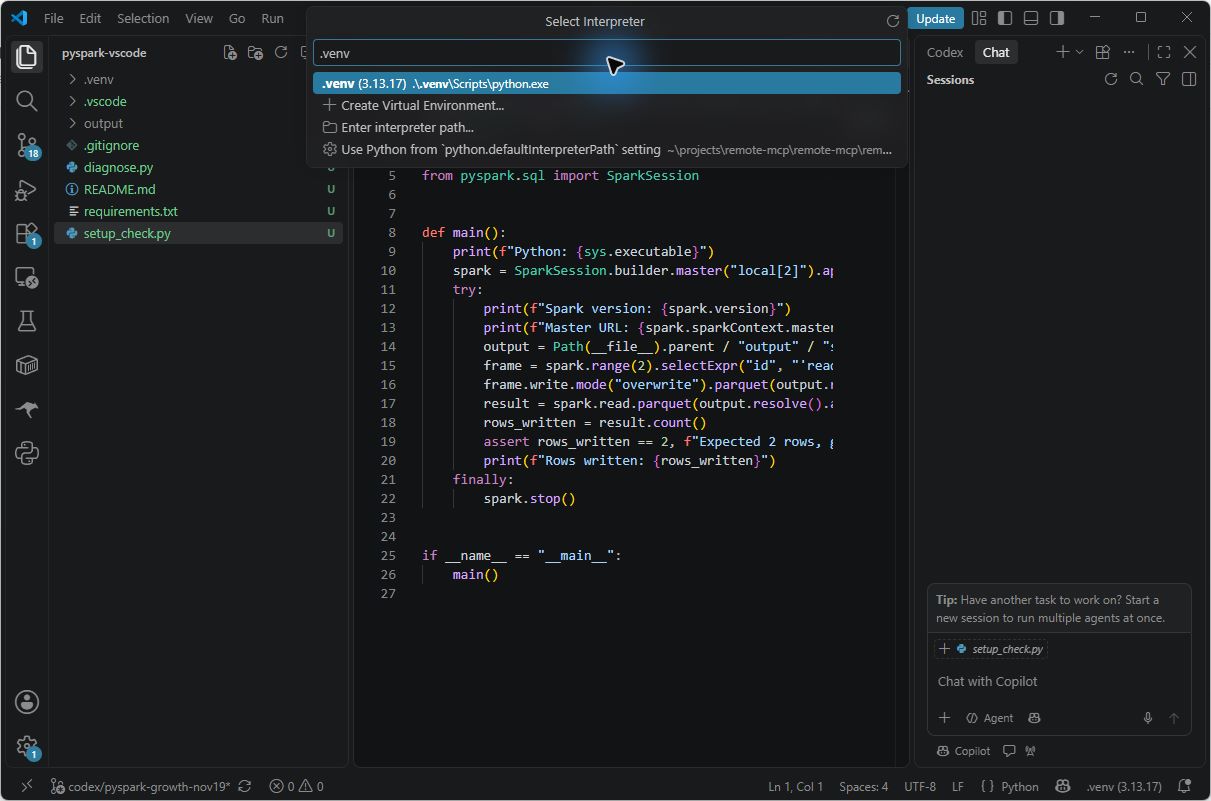
If only the editor underline remains, run Developer: Reload Window after confirming the interpreter selection. If execution still fails, compare the printed executable path again.
Check notebooks and WSL separately
For a notebook, select its kernel in the top-right corner. Run import sys; print(sys.executable) in a cell. The notebook kernel is selected separately from the Python interpreter used for scripts. Install PySpark into that kernel's environment, then restart the kernel.
For WSL, open the folder using the WSL extension and select a Linux interpreter ending in .venv/bin/python. Create the environment inside WSL. A Windows virtual environment can't be reused as a Linux environment.
Check for a file that shadows the package
If PySpark is installed but imports behave strangely, inspect where Python found it.
python -c "import pyspark; print(pyspark.__file__)"
The result should point into your environment's site-packages. A project file named pyspark.py or directory named pyspark can hide the installed package. Rename your own conflicting file and restart the run.
Check Spark after the import succeeds
Run the downloadable setup_check.py. Importing the package verifies Python's environment. Starting a local session and reading back the Parquet file also checks Java and file output. If Java startup fails, use the Java gateway diagnostic guide. Once the example runs, try the debugging walkthrough.
See Microsoft's Python environments documentation for interpreter and environment management.